
Technology
Boost Your PC Speed Instantly by Using USB Drives as RAM

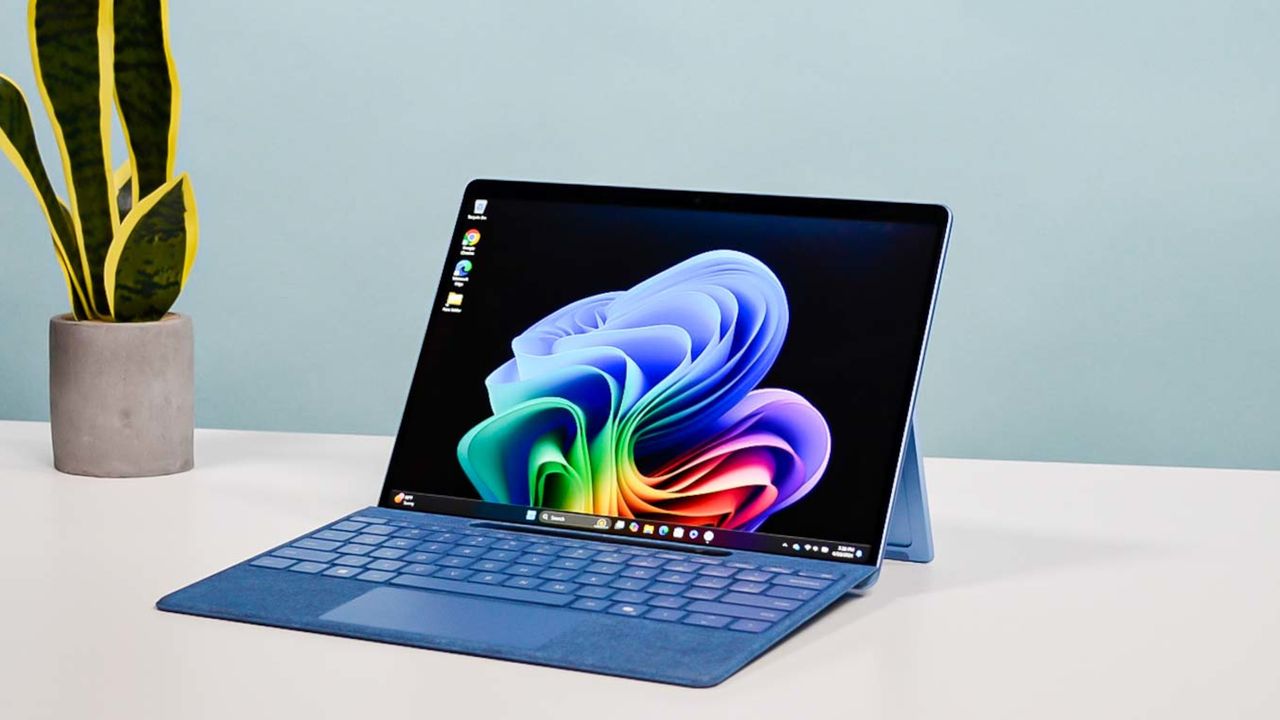
As personal computers age, many users experience a noticeable decline in performance. Tasks that once took only moments can become frustratingly slow. Fortunately, there is a simple and cost-effective solution: using a USB flash drive as virtual RAM. This method can enhance your computer’s speed, especially if it operates on a traditional hard disk drive (HDD) rather than a solid-state drive (SSD).
How USB Drives Function as Virtual RAM
The process of turning a USB flash drive into extra RAM is straightforward and requires less than a minute to set up. This option is available on both Windows 10 and Windows 11, and it can also be utilized on older operating systems. By leveraging the USB drive, the system uses it as a cache, allowing for faster data access.
To maximize the benefits, it is essential to note that this method is particularly effective for computers using an HDD. Users with SSDs may not notice significant improvements in speed. The flash drive should have at least 500 MB of free space and a high data transfer rate to ensure optimal performance.
Step-by-Step Guide to Setting Up ReadyBoost
Setting up a USB flash drive as virtual RAM involves a few simple steps:
1. **Insert the USB Flash Drive**: Begin by plugging a fast USB flash drive or SD card into your Windows PC. Ensure it meets the storage and speed requirements for the best results.
2. **Open File Explorer**: Launch the File Explorer application on your computer. The USB flash drive or SD card should appear in the sidebar.
3. **Select Properties**: Right-click on the USB flash drive or SD card icon and choose the “Properties” option from the context menu.
4. **Choose ReadyBoost**: Navigate to the “ReadyBoost” tab. You can select “Dedicate this device to ReadyBoost” if you want to use the entire drive for virtual RAM. Alternatively, choose “Use this device” if you plan to store additional files on it.
5. **Allocate Space**: Use the slider to designate an appropriate amount of space. Aim to allocate between one to three times the size of your computer’s current RAM. Windows will suggest a specific amount, which is advisable to follow.
6. **Finish the Setup**: After making your selections, click “Apply” and then “OK” to complete the process. A cache file will now be added to the drive, enabling it to function as additional RAM.
Implementing this method can lead to noticeable improvements in your computer’s performance, particularly if it is still reliant on an older hard disk drive. By taking advantage of available USB flash drives, users can enjoy a smoother computing experience without the need for costly upgrades.
Stay updated with the latest technology tips and tricks by following credible sources for more insights.











Revolutionary Photonic Ski-Jump Could Miniaturize LiDAR Systems

Couples Detox from Plastics in New Netflix Doc: Can It Boost Fertility?

Aventon Launches Affordable Full-Suspension Electric Mountain Bike

Discover Eight Must-Try Restaurants This Spring Season

UC Irvine Team Unveils Innovative Ion Pump for Water Treatment

One-Third of Americans Trim Daily Expenses for Healthcare Needs

Apple Secures First Oscar in Three Years with F1: The Movie

Fourth Graders Celebrate St. Patrick’s Day with Creative Weather Drawings

Kim Kardashian Dazzles at Vanity Fair Oscars Party 2026

Nostradamus’ 2026 Predictions: Star Death and Dark Events Loom

Breakthroughs and Challenges Await Science in 2026

Electric Moto Influencer Surronster Arrested in Tijuana

OpenAI to Implement Age Verification for ChatGPT by December 2025

Discover the Top 10 Calorie Counting Apps of 2025

Recovering a Suspended TikTok Account: A Step-by-Step Guide

Bella Hadid Shares Health Update After Treatment for Lyme Disease

Backpack Drives Equip Students with Supplies for New School Year

Analysts Project Stronger Growth for Apple’s iPhone 17 Lineup
-
 Science8 months ago
Nostradamus’ 2026 Predictions: Star Death and Dark Events Loom
-
 Science8 months ago
Breakthroughs and Challenges Await Science in 2026
-
 Technology11 months ago
Electric Moto Influencer Surronster Arrested in Tijuana
-
 Technology9 months ago
OpenAI to Implement Age Verification for ChatGPT by December 2025
-
 Technology1 year ago
Discover the Top 10 Calorie Counting Apps of 2025
-
 Technology1 year ago
Recovering a Suspended TikTok Account: A Step-by-Step Guide
-
 Health11 months ago
Bella Hadid Shares Health Update After Treatment for Lyme Disease
-
 Education1 year ago
Backpack Drives Equip Students with Supplies for New School Year
-
 Health12 months ago
Analysts Project Stronger Growth for Apple’s iPhone 17 Lineup
-

 Health12 months ago
Japanese Study Finds Rose Oil Can Increase Brain Gray Matter
-

 Technology8 months ago
Top 10 Penny Stocks to Watch in 2026 for Strong Returns
-

 Science10 months ago
Starship V3 Set for 2026 Launch After Successful Final Test of Version 2